构建OpenStack镜像的环境搭建

虽然OpenStack官方文档上有提供了各类操作系统的OpenStack镜像,但我们往往需要根据实际情况进行一些自定义设置,因此本文主要介绍如何在自己的笔记本或台式机上通过VMware构建一个可以用于制作OpenStack镜像的环境,以便可以快速的制作自定义的OpenStack镜像。

环境介绍


VMware版本 虚拟机操作系统 虚拟机规格 虚拟机IP 网卡模式 镜像 镜像下载链接
VMware WorkStation12 Pro CentOS7.1 2核4G100G 192.168.128.129 NAT CentOS-7-x86_64-Minimal-1503-01.iso http://archive.kernel.org/centos-vault/

VMware虚拟机操作系统安装


此步请参考之前的文章如何在VMware下安装RedHat6.X虚拟机

说明
记得在VMware里将虚拟机处理器中的“虚拟化Intel VT-x/EPT 或 AMD-V/RVI(V)”选项勾选,开启嵌套虚拟化功能

初始化配置


1
2
3
4
5
6
iptables -F
systemctl stop firewalld
systemctl disable firewalld
setenforce 0
sed -i 's/SELINUX=enforcing/SELINUX=disabled/g' /etc/selinux/config
reboot

安装epel源


https://fedoraproject.org/wiki/EPEL/zh-cn下载对应操作系统版本的epel-release包的最新版本,然后上传到虚拟机并安装

1
rpm -ivh epel-release-latest-7.noarch.rpm

安装KVM


1
2
3
4
yum install libcanberra-gtk2 qemu-kvm.x86_64 qemu-kvm-tools.x86_64 libvirt.x86_64 libvirt-cim.x86_64 libvirt-client.x86_64 libvirt-java.noarch libvirt-python.x86_64 dbus-devel virt-clone virt-manager libvirt libvirt-python -y
yum groupinstall "Virtualization Host" -y
yum install qemu-system* -y
systemctl restart libvirtd

修改网卡配置文件


修改网卡配置文件,重启网络服务,将虚拟机网卡桥接到br网桥上,此示例中虚拟机网卡名为eno16777736

说明
DEVICE、NAME、IPADDR、NETMASK、GATEWAY参数要根据实际情况进行修改

1
2
3
4
5
6
7
8
9
10
11
12
13
14
15
16
17
18
19
20
21
22
23
cat > /etc/sysconfig/network-scripts/ifcfg-eno16777736 << EOF 
BOOTPROTO=static
NAME=eno16777736
DEVICE=eno16777736
ONBOOT=yes
BRIDGE=br
EOF

cat > /etc/sysconfig/network-scripts/ifcfg-br << EOF
TYPE=Bridge
BOOTPROTO=static
IPADDR=192.168.128.129
NETMASK=255.255.255.0
GATEWAY=192.168.128.2
DNS1=192.168.128.2
NAME=br
DEVICE=br
ONBOOT=yes
EOF

systemctl stop NetworkManager
systemctl disable NetworkManager
systemctl restart network

创建工作目录


1
2
mkdir /tvm/
cd /tvm/

至此环境已经搭建完成,继续根据以下步骤启动一台虚拟机验证环境是否正常。

测试验证


上传虚拟机镜像

https://download.cirros-cloud.net/下载任意版本的cirros镜像文件(例如cirros-0.4.0-x86_64-disk.img),并上传到/tvm目录下。如果你使用的镜像是qcow2格式的(可通过qemu-img info <image_name>查看file format字段确认镜像格式),先参考以下命令转换成raw格式的。

1
qemu-img convert -f qcow2 cirros-0.4.0-x86_64-disk.img -O raw cirros-0.4.0-x86_64-disk.img.raw

创建虚拟机XML文件并启动虚拟机

创建虚拟机XML文件

1
touch /tvm/templates.xml

文件内容如下:

参数说明
<name>koenli</name>:自定义虚拟机名称
<vcpu>2</vcpu>:自定义CPU核数
<memory>4194304</memory>:自定义内存大小(单位byte)

1
2
3
4
5
6
7
8
9
10
11
12
13
14
15
16
17
18
19
20
21
22
23
24
25
26
27
28
29
30
31
<domain type='kvm'>
<name>koenli</name>
<memory>4194304</memory>
<vcpu>2</vcpu>
<cpu mode='host-model'><model fallback='allow'/><topology sockets='1' threads='1' cores='2'/></cpu>
<os><type arch='x86_64' machine='pc-i440fx-2.0'>hvm</type><boot dev='cdrom'/><boot dev='hd'/></os>
<features><acpi/><apic/><pae/></features>
<on_poweroff>destroy</on_poweroff>
<on_reboot>restart</on_reboot>
<on_crash>destroy</on_crash>

<devices>
<emulator>/usr/bin/qemu-system-x86_64</emulator>
<disk type='file'><driver name='qemu' type='raw' cache='none'/><source file=''/><target dev='vda' bus='virtio'/><serial>bc-system</serial></disk>

<disk type='file' device='cdrom'>
<target dev='hdc' bus='ide'/>
<source file=''/>
<readonly/>
</disk>

<channel type='unix'><source mode='bind' path='/var/lib/libvirt/qemu/f16x86_64.agent'/><target type='virtio' name='org.qemu.guest_agent.0' state='connected'/></channel>
<serial type='pty'><target port='0'/></serial><console type='pty'><target type='serial' port='0'/></console>
<graphics type='vnc' port='22000' passwd='123456' autoport='no' keymap='en-us' listen='0.0.0.0'/>
<input type='tablet' bus='usb'/>
<interface type='bridge'><source bridge='br'/><mac address='D0:0D:7C:DC:AA:4C'/><model type='virtio'/></interface>
<interface type='bridge'><source bridge='br'/><mac address='D0:0D:7C:DC:AA:4D'/><model type='virtio'/></interface>
</devices>

<clock offset='localtime'/>
</domain>

在下图红色方框处指定虚拟机镜像文件绝对路径,如果需要给虚拟机挂载光驱,则在红色箭头处指定ISO文件绝对路径

配置完成后执行以下命令启动虚拟机

1
2
3
cd /tvm/
virsh create templates.xml
virsh list

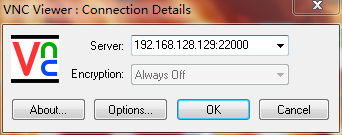
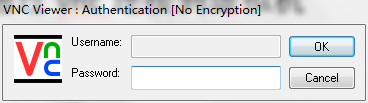
通过VNC Viewer连接到虚拟机

连接地址 VNC密码
192.168.128.129:22000 123456