使用Prometheus+Grafana监控Ceph

在Ceph Luminous(12.x)之前的版本,可以使用第三方的ceph_exporter采集Ceph集群的监控信息。 从Ceph Luminous 12.2.1版本开始,MGR中自带了Prometheus插件,内置了Prometheus Ceph Exporter,可以使用Ceph MGR内置的exporter作为Prometheus的target。

启用Prometheus监控模块


在任意一台MGR节点执行如下命令启用Prometheus监控模块

1
ceph mgr module enable prometheus

启用成功后在MGR节点上查看mgr的监听端口

1
2
3
4
# netstat -ntple | grep mgr
tcp 0 0 10.211.55.7:6818 0.0.0.0:* LISTEN 167 39048 949/ceph-mgr
tcp 0 0 10.211.55.7:6819 0.0.0.0:* LISTEN 167 39068 949/ceph-mgr
tcp6 0 0 :::9283 :::* LISTEN 167 39087 949/ceph-mgr

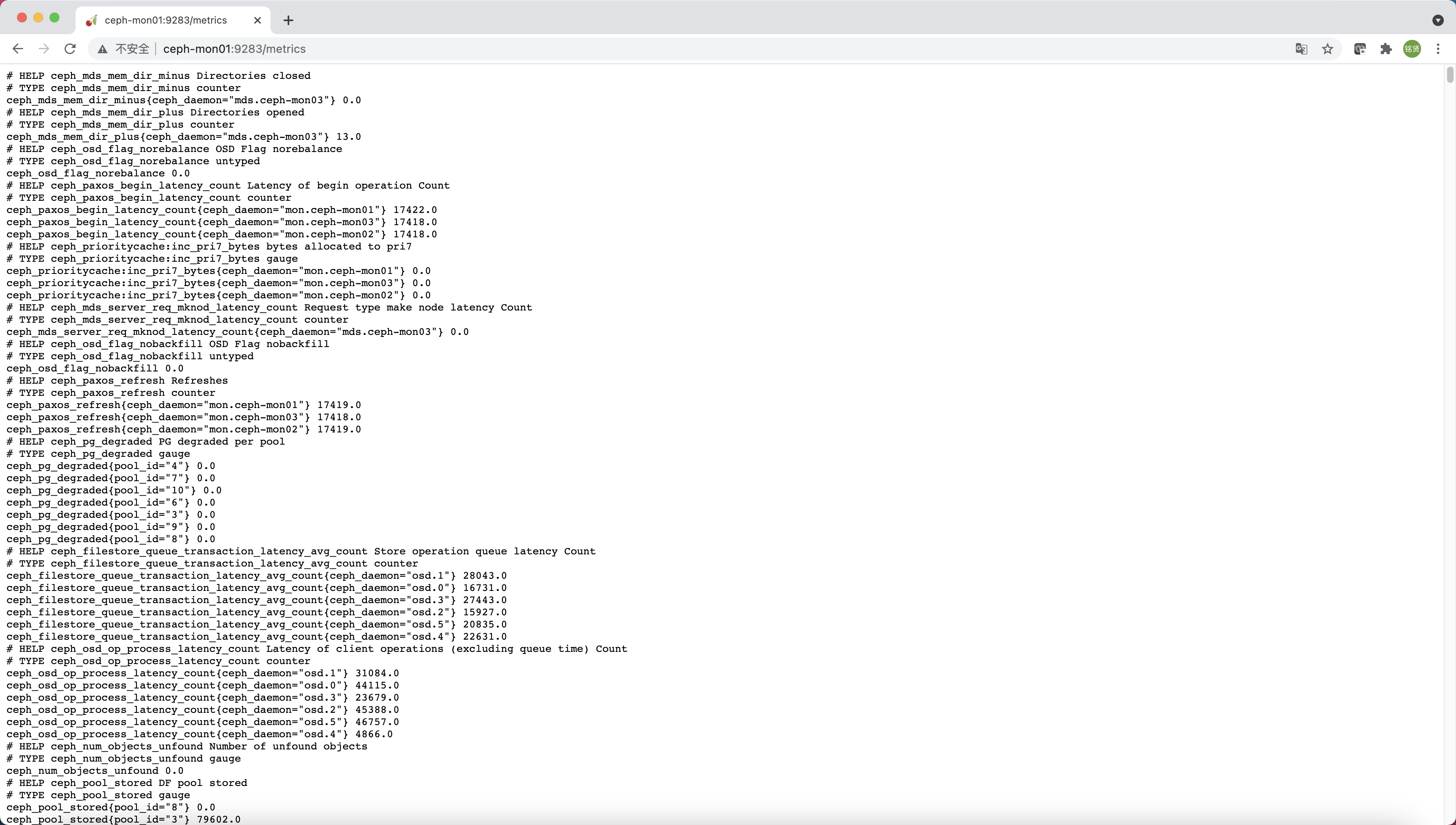
其中9283ceph_exporter的监听端口,访问http://<MGR>:9283/metrics可以获取到metrics
安装Prometheus Server


Prometheus基于Golang编写,编译后的软件包,不依赖于任何的第三方依赖。只需要下载对应平台的二进制包,解压并且添加基本的配置即可正常启动Prometheus Server。

二进制包安装

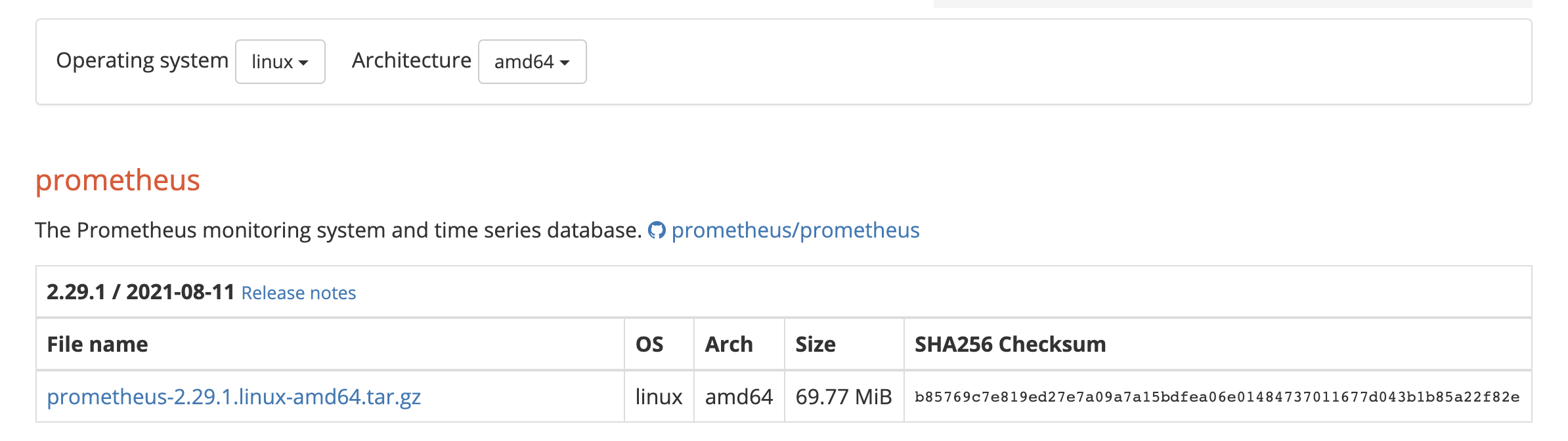
对于非Docker环境,可以在https://prometheus.io/download/根据操作系统架构类型找到最新版本的Prometheus Server安装包。

解压到/opt/目录,解压出来的目录中包含Prometheus二进制文件promtools二进制文件和默认的Prometheus配置文件prometheus.yml

1
2
3
tar zxf prometheus-2.29.1.linux-amd64.tar.gz -C /opt/
mv /opt/prometheus-2.29.1.linux-amd64/ /opt/prometheus
cd /opt/prometheus

Prometheus作为一个时间序列数据库,其采集的数据会以文件的形式存储在本地中,默认的存储路径为/data/,当启动Prometheus时会自动创建。也可以通过--storage.tsdb.path参数修改本地数据存储的路径

配置Prometheus作为系统服务进行管理

1
2
3
4
5
6
7
8
9
10
11
cat > /usr/lib/systemd/system/prometheus.service << EOF
[Unit]
Description=prometheus
[Service]
ExecStart=/opt/prometheus/prometheus --config.file=/opt/prometheus/prometheus.yml --storage.tsdb.path=/opt/prometheus/data/ --web.enable-lifecycle
ExecReload=/bin/kill -HUP \$MAINPID
KillMode=process
Restart=on-failure
[Install]
WantedBy=multi-user.target
EOF

ExecStart为启动Prometheus的具体命令,需要确保二进制文件和配置文件路径与实际环境一致。若需进行其他参数的自定义配置,直接将参数追加到命令最后即可。以下为几个常用的配置参数:

参数 作用
--config.file=prometheus.yml 指定配置文件
--web.listen-address=0.0.0.0:9090 指定监听地址和端口
--log.level=info 设置日志级别
--alertmanager.timeout=10s 设置与报警组件的超时时间
--storage.tsdb.path=/data/ 指定数据目录
--storage.tsdb.retention.time=15d 设置数据保存时间,默认15天
--web.enable-lifecycle 开启热加载功能

启动Prometheus服务

1
2
3
systemctl daemon-reload
systemctl enable prometheus
systemctl start prometheus

正常情况下,如果启动成功通过systemctl status prometheus可以看到以下输出内容,关键信息为Server is ready to receive web requests.

1
2
3
4
5
6
7
8
9
10
11
12
13
14
15
16
17
18
● prometheus.service - prometheus
Loaded: loaded (/usr/lib/systemd/system/prometheus.service; disabled; vendor preset: disabled)
Active: active (running) since Tue 2021-08-17 10:04:22 CST; 4s ago
Main PID: 1383 (prometheus)
CGroup: /system.slice/prometheus.service
└─1383 /opt/prometheus/prometheus --config.file=/opt/prometheus/prometheus.yml

Aug 17 10:04:22 prometheus-binary prometheus[1383]: level=info ts=2021-08-17T02:04:22.189Z caller=head.go:815 component=tsdb msg="Replaying on-disk m... if any"
Aug 17 10:04:22 prometheus-binary prometheus[1383]: level=info ts=2021-08-17T02:04:22.189Z caller=head.go:829 component=tsdb msg="On-disk memory mapp…on=5.273µs
Aug 17 10:04:22 prometheus-binary prometheus[1383]: level=info ts=2021-08-17T02:04:22.189Z caller=head.go:835 component=tsdb msg="Replaying WAL, this...a while"
Aug 17 10:04:22 prometheus-binary prometheus[1383]: level=info ts=2021-08-17T02:04:22.189Z caller=head.go:892 component=tsdb msg="WAL segment loaded"...egment=0
Aug 17 10:04:22 prometheus-binary prometheus[1383]: level=info ts=2021-08-17T02:04:22.189Z caller=head.go:898 component=tsdb msg="WAL replay complete…=350.257µs
Aug 17 10:04:22 prometheus-binary prometheus[1383]: level=info ts=2021-08-17T02:04:22.190Z caller=main.go:839 fs_type=EXT4_SUPER_MAGIC
Aug 17 10:04:22 prometheus-binary prometheus[1383]: level=info ts=2021-08-17T02:04:22.190Z caller=main.go:842 msg="TSDB started"
Aug 17 10:04:22 prometheus-binary prometheus[1383]: level=info ts=2021-08-17T02:04:22.190Z caller=main.go:969 msg="Loading configuration file" filena...heus.yml
Aug 17 10:04:22 prometheus-binary prometheus[1383]: level=info ts=2021-08-17T02:04:22.200Z caller=main.go:1006 msg="Completed loading of configuration file" …µs
Aug 17 10:04:22 prometheus-binary prometheus[1383]: level=info ts=2021-08-17T02:04:22.200Z caller=main.go:784 msg="Server is ready to receive web requests."
Hint: Some lines were ellipsized, use -l to show in full.

容器安装

容器安装的方式需先安装Docker环境,首先先配置docker-ce repository

1
2
3
4
5
6
7
8
9
# 安装所需要的包,yum-utils提供了yum-config-manager工具,device-mapper-persistent-data和lvm2是设备映射存储驱动所需要的
yum install -y yum-utils \
device-mapper-persistent-data \
lvm2

# 设置稳定版的repo仓库
yum-config-manager \
--add-repo \
https://download.docker.com/linux/centos/docker-ce.repo

说明
若无法访问国外网站,可配置国内阿里云的docker源

1
wget https://mirrors.aliyun.com/docker-ce/linux/centos/docker-ce.repo -O /etc/yum.repos.d/docker-ce.repo

配置好Docker仓库后,执行如下命令安装最新版Docker

1
2
# 安装最新版本的docker-ce
yum install docker-ce docker-ce-cli containerd.io -y

说明
若要安装指定版本的docker,按照如下步骤

1
2
3
4
5
# 列出repo仓库中可用的docker版本并降序排列
yum list docker-ce --showduplicates | sort -r

# 确认好要安装的版本,例如为18.09.9,则替换yum install docker-ce-<VERSION_STRING> docker-ce-cli-<VERSION_STRING> containerd.io > -y中的<VERSION_STRING>进行安装
例如:yum install docker-ce-18.09.9 docker-ce-cli-18.09.9 containerd.io -y

启动Docker并设置开机自启

1
2
3
systemctl start docker
systemctl enable docker
systemctl status docker

设置阿里云镜像加速器(可选)

1
2
3
4
5
6
7
8
9
10
mkdir -p /etc/docker
cat > /etc/docker/daemon.json << EOF
{
"registry-mirrors": ["https://lerc8rqe.mirror.aliyuncs.com"]
}
EOF

systemctl daemon-reload
systemctl restart docker
docker info

https://prometheus.io/download/根据操作系统架构类型找到最新版本的Prometheus Server安装包。

解压,将解压目录中的Prometheus配置文件prometheus.yml拷贝到/opt/prometheus目录中

1
2
3
4
5
tar zxf prometheus-2.29.1.linux-amd64.tar.gz
mkdir -p /opt/prometheus
cp -a prometheus-2.29.1.linux-amd64/prometheus.yml /opt/prometheus/
mkdir -p /opt/prometheus/data/
chmod 777 /opt/prometheus/data/

使用Prometheus的镜像启动Prometheus Server,将宿主机文件系统中的prometheus.yml文件挂载到容器中的/etc/prometheus/prometheus.yml,使用容器数据卷实现Prometheus数据持久化存储到宿主机上并设置容器名称为prometheus(便于后续对容器进行重启等操作)

1
docker run -d --restart=always --name=prometheus -p 9090:9090 -v /opt/prometheus/data:/prometheus -v /opt/prometheus/prometheus.yml:/etc/prometheus/prometheus.yml prom/prometheus:v2.29.1

访问Portal

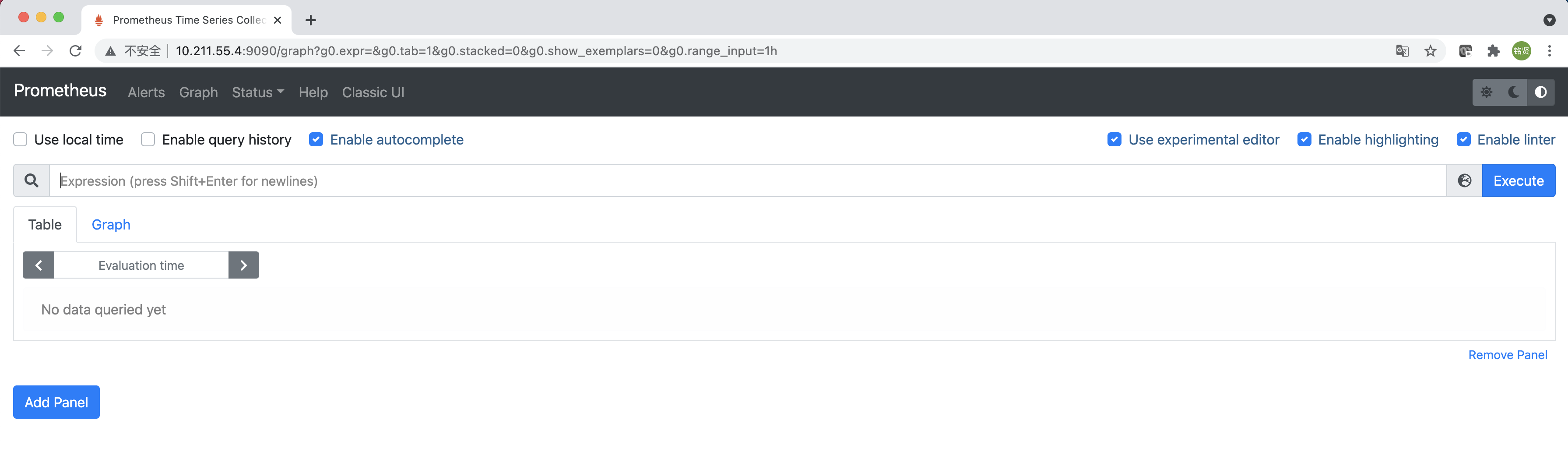
启动完成后,可以通过http://<IP>:9090访问Prometheus的UI界面
从Ceph Exporter收集监控数据


为了让Prometheus Server能够从Ceph Exporter获取到监控数据,需要修改Prometheus配置文件。编辑prometheus.yml并在scrape_configs节点下添加以下内容:

1
2
3
4
5
6
7
8
9
10
11
12
13
14
scrape_configs:
# The job name is added as a label `job=<job_name>` to any timeseries scraped from this config.
- job_name: "prometheus"

# metrics_path defaults to '/metrics'
# scheme defaults to 'http'.

static_configs:
- targets: ["localhost:9090"]

# 新增如下部分采集ceph exporter监控数据,targets指定所有MGR的IP,端口为9283
- job_name: "Ceph"
static_configs:
- targets: ["10.211.55.7:9283","10.211.55.8:9283","10.211.55.9:9283"]

重新热加载prometheus配置

1
systemctl reload prometheus

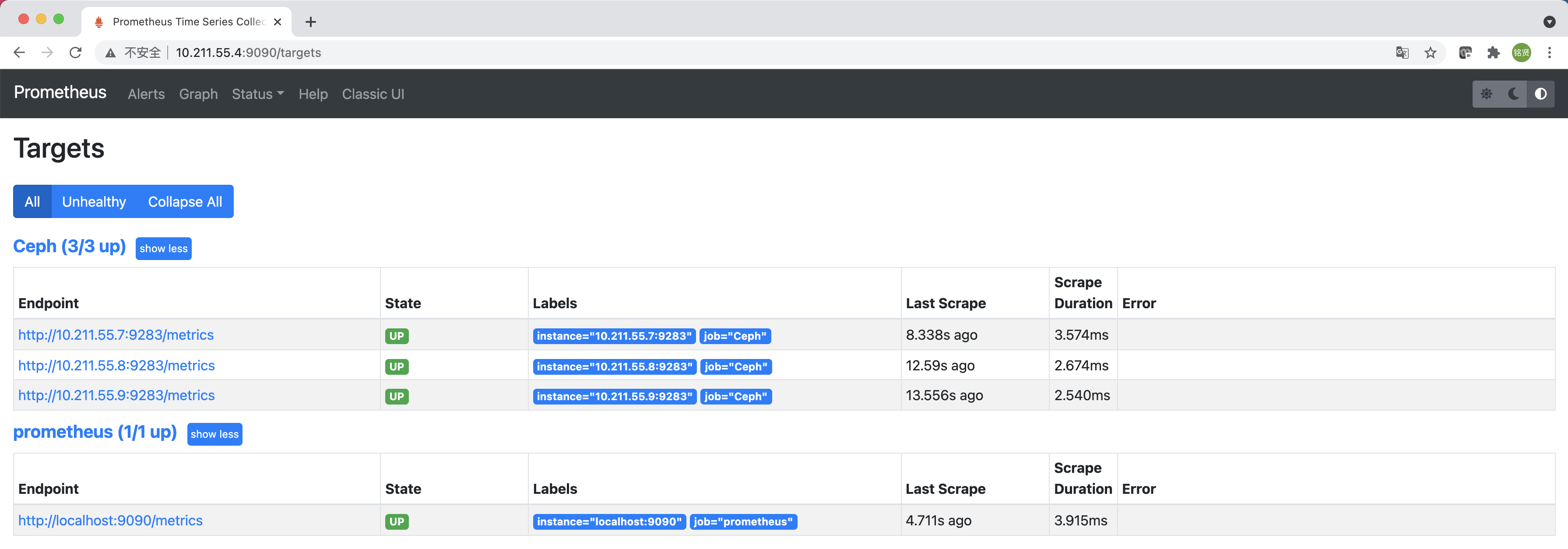
访问http://<IP>:9090访问Prometheus的UI界面,选择"Status"->"Targets",如果Prometheus能够正常从Ceph Exporter获取数据,可以看到targets的StateUP

安装Grafana


官网安装文档:https://grafana.com/docs/grafana/latest/setup-grafana/installation/

RPM包安装

配置Grafana OSS releases Yum源

1
2
3
4
5
6
7
8
9
10
11
cat > /etc/yum.repos.d/grafana.repo << EOF
[grafana]
name=grafana
baseurl=https://packages.grafana.com/oss/rpm
repo_gpgcheck=1
enabled=1
gpgcheck=1
gpgkey=https://packages.grafana.com/gpg.key
sslverify=1
sslcacert=/etc/pki/tls/certs/ca-bundle.crt
EOF

安装Grafana

1
yum install grafana -y

启动Grafana

1
2
3
4
systemctl daemon-reload
systemctl enable grafana-server
systemctl start grafana-server
systemctl status grafana-server

容器安装

直接使用Grafana镜像启动即可

1
docker run -d --restart=always -p 3000:3000 --name grafana grafana/grafana:8.1.1

配置Grafana


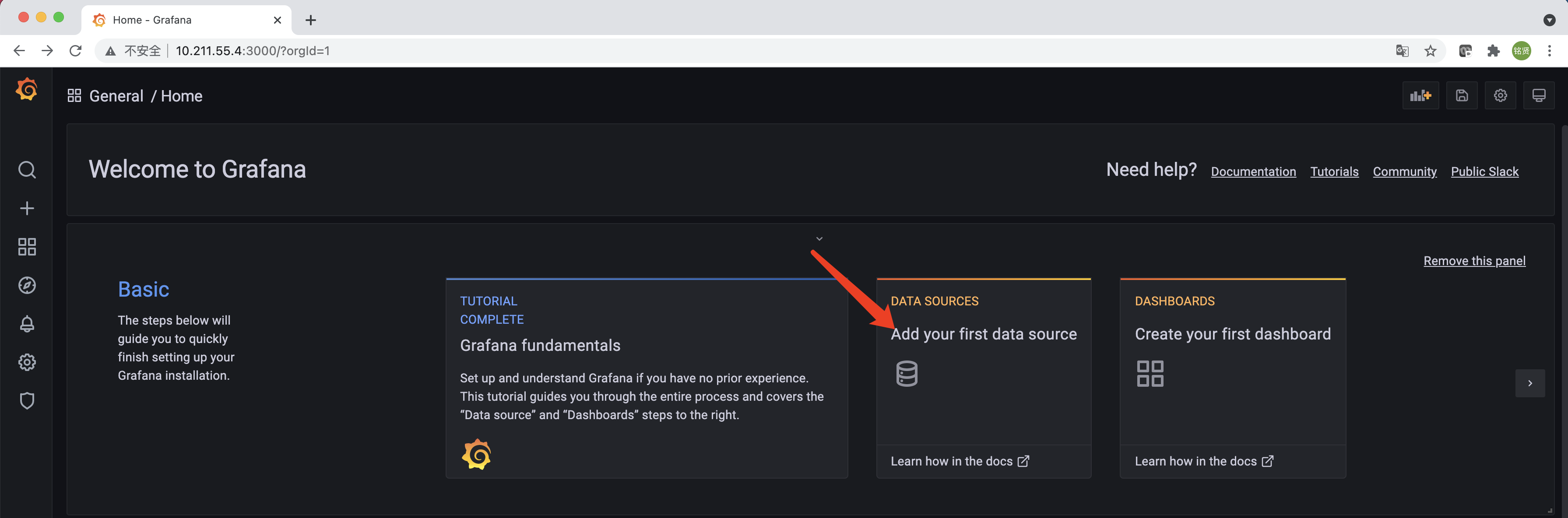
安装完成后访问http://<IP>:3000就可以进入到Grafana的界面中,默认情况下使用账户admin/admin进行登录(首次登录会要求修改默认密码)。单击"Add your first data source"添加数据源
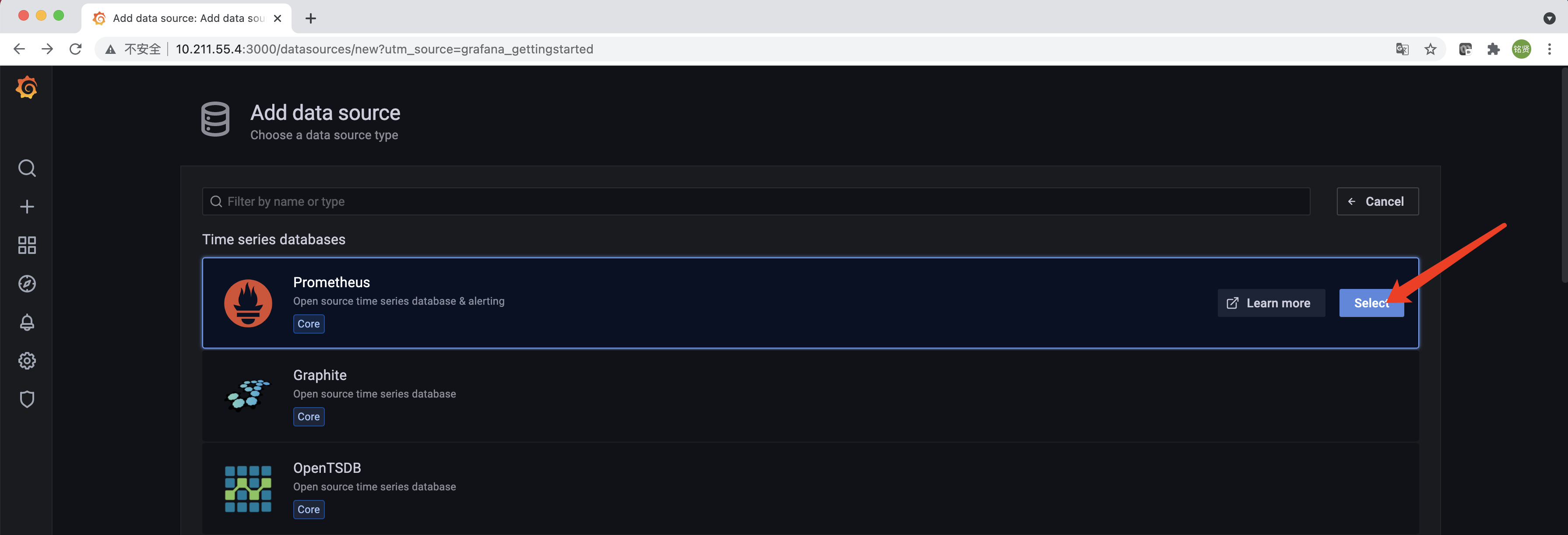
选择“Prometheus”,单击右侧的“Select”
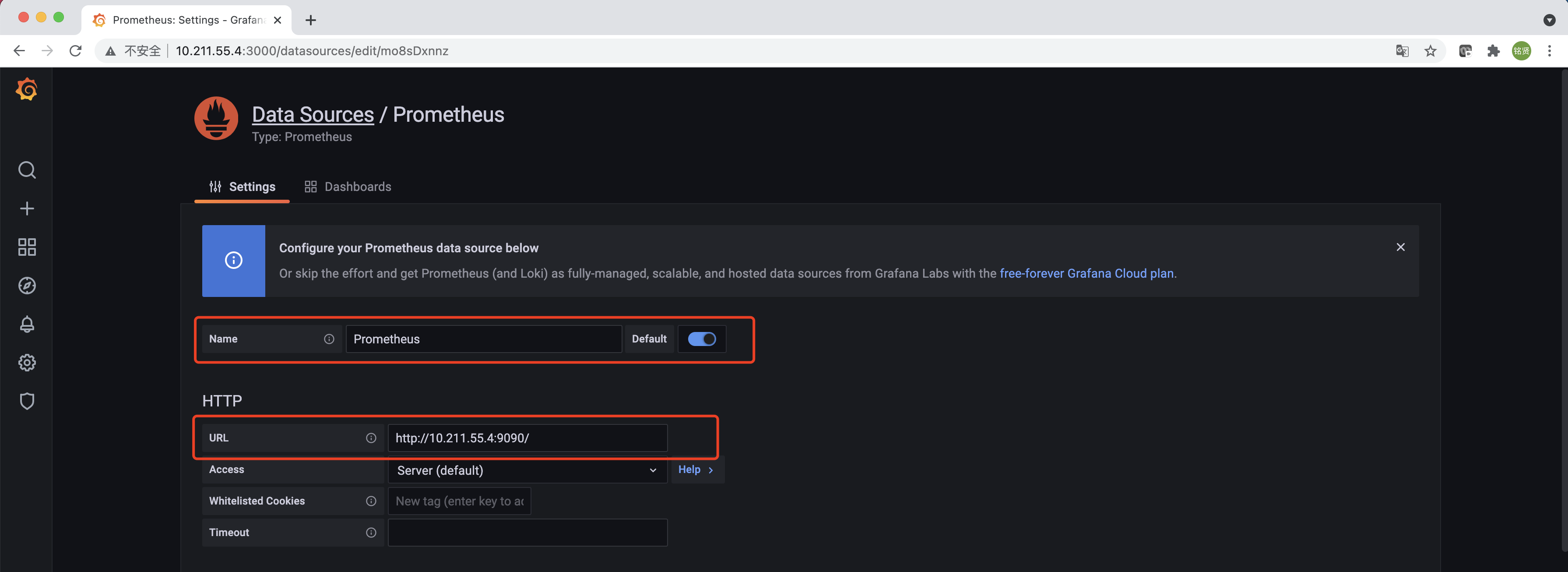
配置“Name”,勾选“Default”“URL”填写Prometheus的访问地址,滑到最下方单击“Save & test”完成添加,配置正确的情况下会提示"Data source is working"的信息。
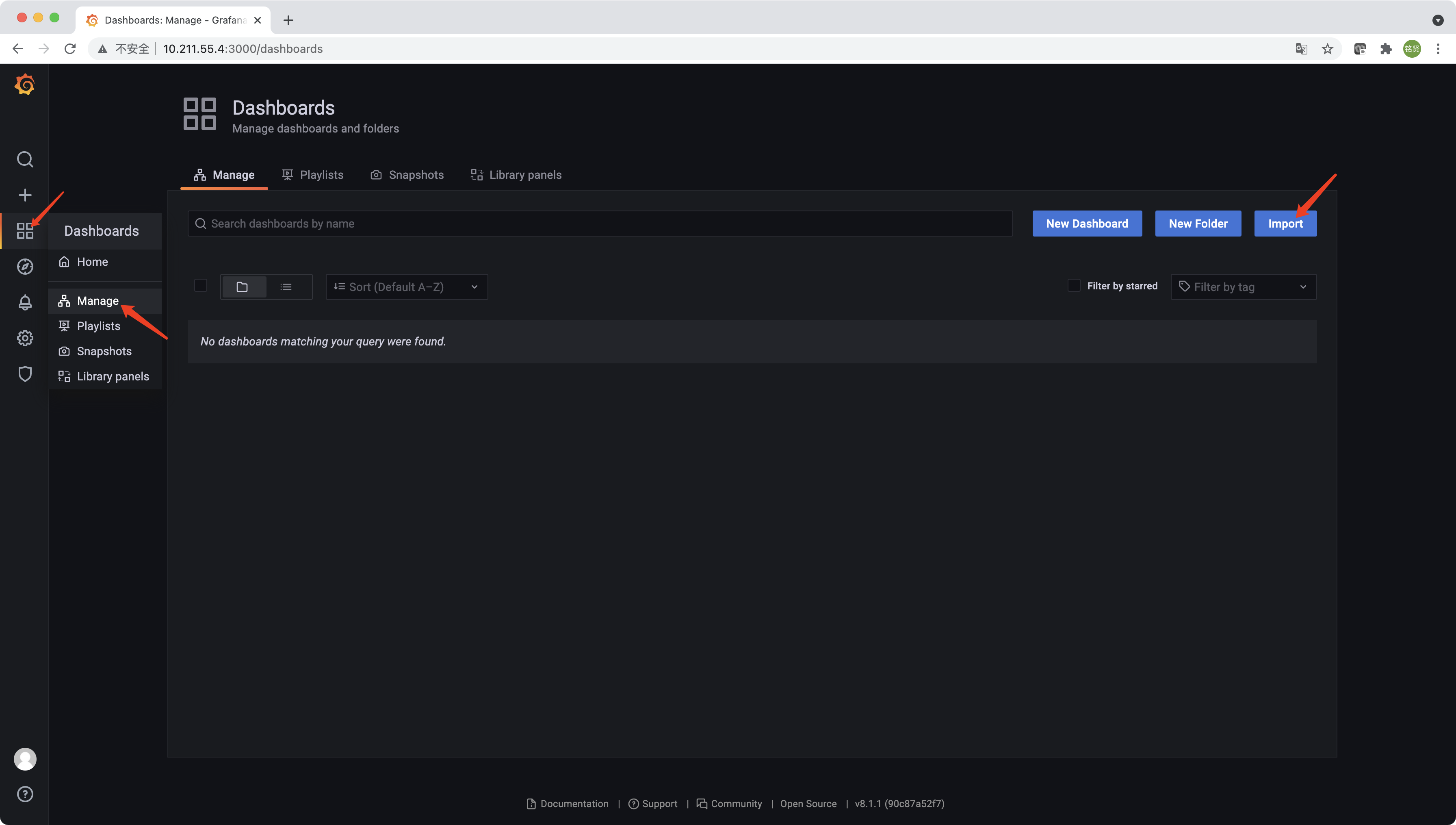
在完成数据源的添加之后就可以在Grafana中创建可视化Dashboard了,选择左侧的“Dashboards”->“Manage”,单击“Import”
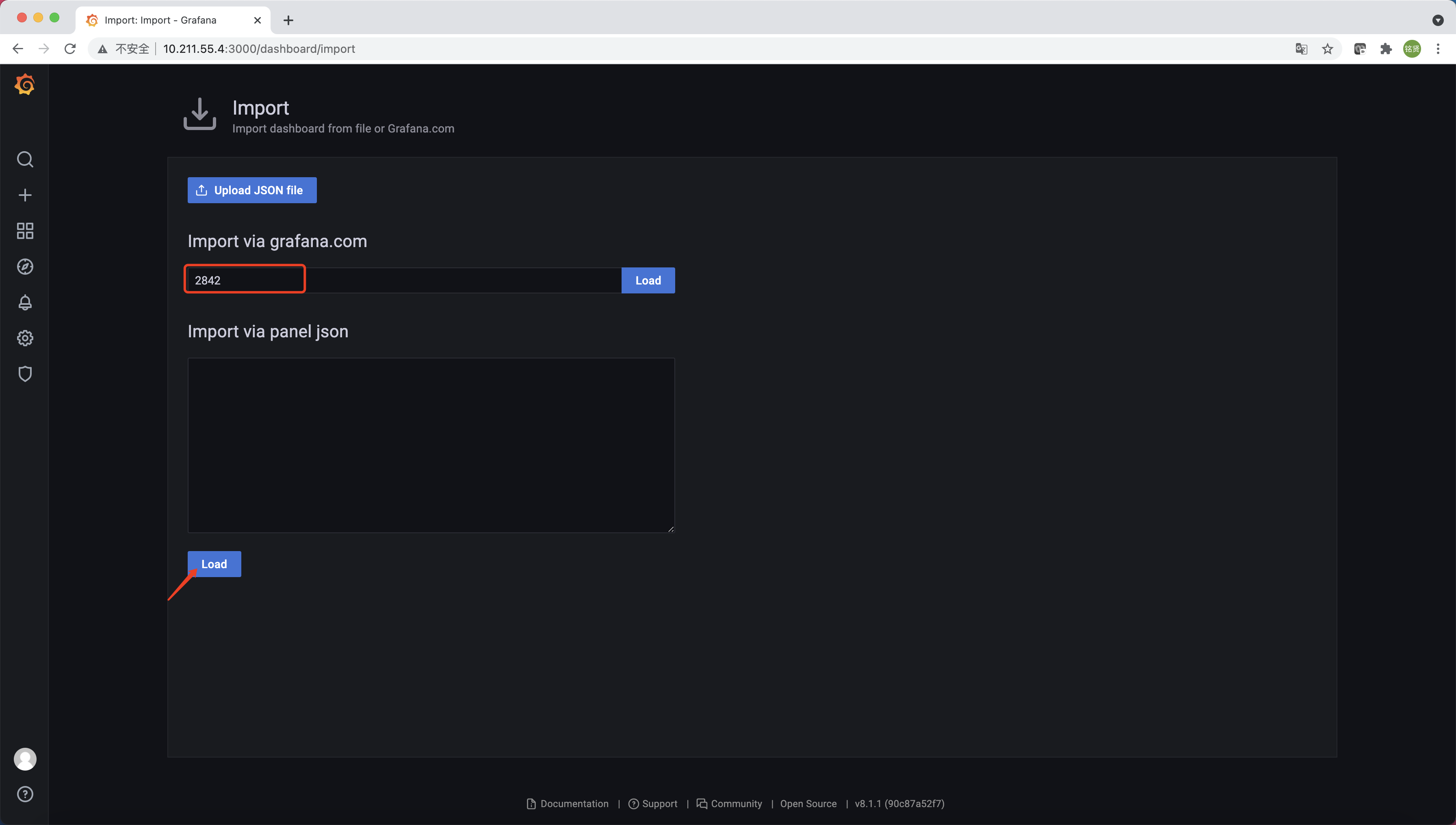
输入Dashboard模板编号2842,单击“Load”

说明
也可以下载Dashboard模板的json文件然后单击“Upload JSON file”上传
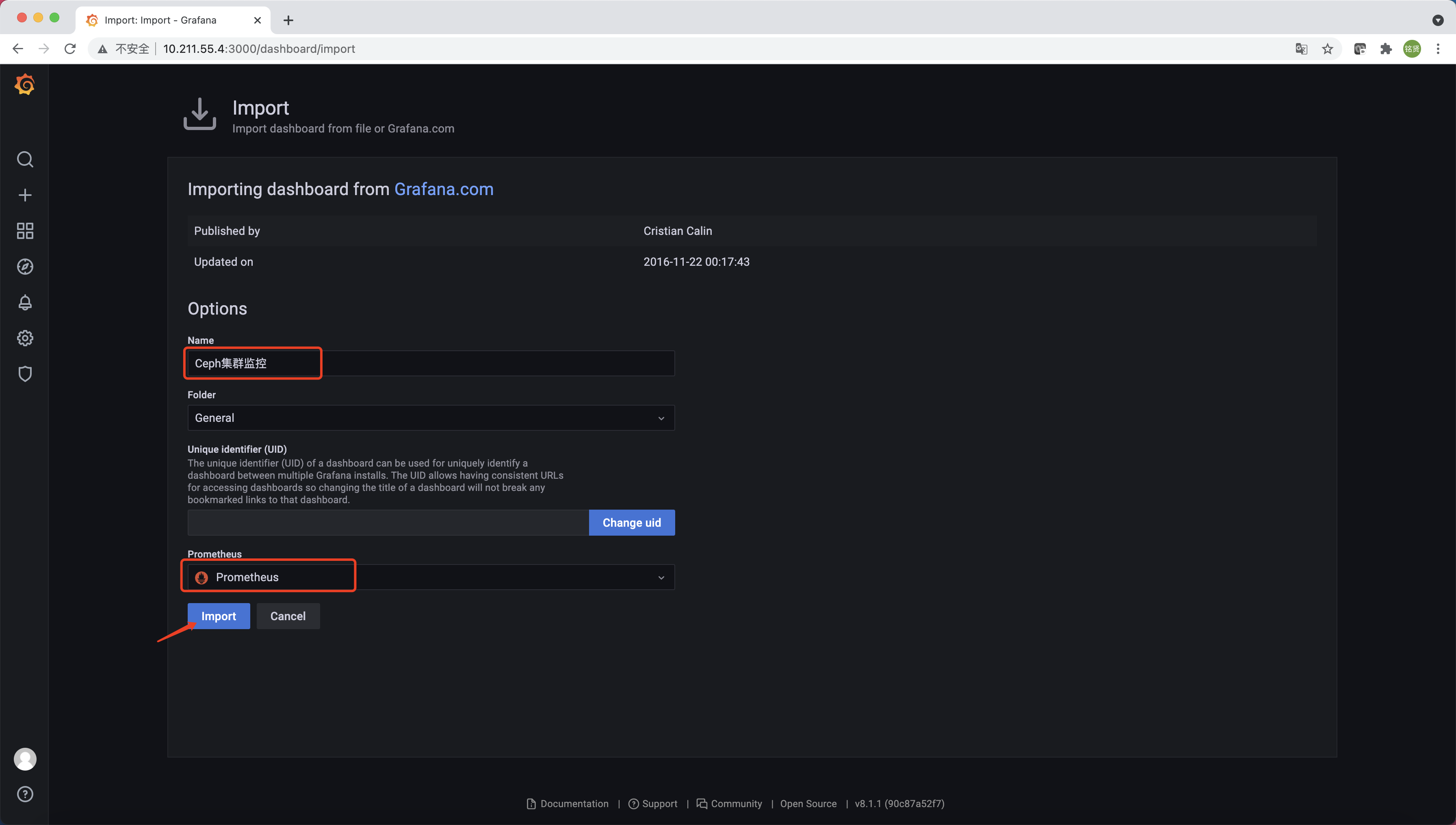
给Dashboard配置个名称,选择数据源为Prometheus,最后单击“Import”
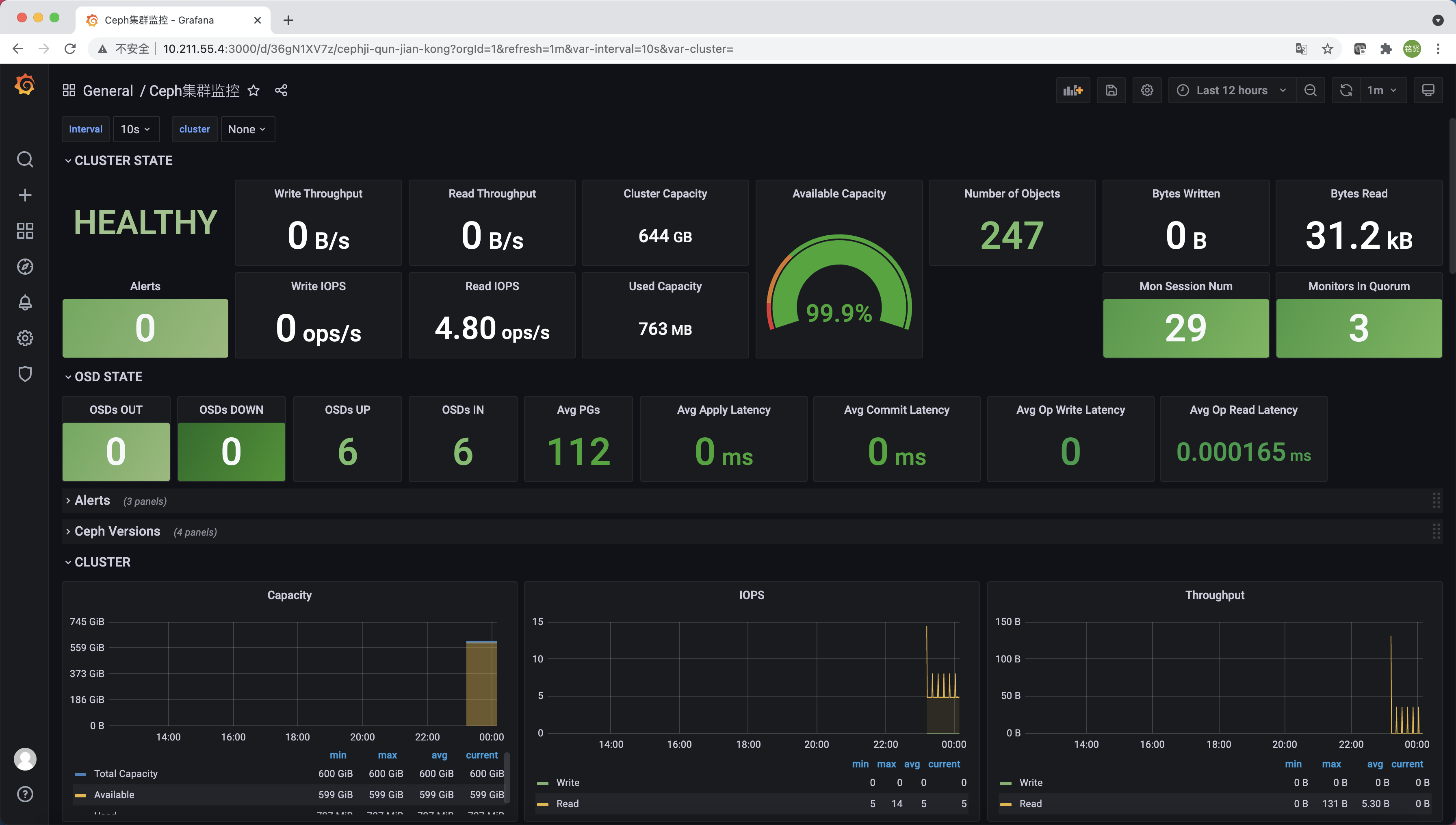
导入完成后Ceph集群的监控信息将清晰的展示在Dashboard中。